
Managing Blogs in the CMS
Created by: Synergy Marketing
Created: December 3, 2025
Purpose
This SOP outlines the steps for adding and managing blog posts in the Framer CMS, ensuring that team members can effectively feature and organize content on the site.
Main blog page: https://beckcenter.org/blog
SOP’s for Adding & Managing Content



Video Demo
Accessing the Blog Section 0:12
Navigate to Framer.
Click on 'CMS'.
Select 'Blog' from the left-hand menu to view the list of blogs.
Adding a New Blog Post 0:26
Click on '➕ New Item' to create a new blog post.
Enter a title for the blog post.
The slug will auto-fill, but you can edit it if necessary.
Setting Featured Status and Categories 3:07
Use the featured toggle to mark the post as featured.
Select the appropriate category for the blog post to ensure it is categorized correctly.
Uploading Images and PDFs 4:02
Add a featured image sized 1920x1920.
For additional images, ensure they are sized 1920x1080.
If applicable, upload a PDF (e.g., Donor Digest) by clicking 'Add'.
Creating a Call to Action (CTA) 4:54
Enter text for the CTA button (not in all caps).
Ensure the CTA is relevant to the blog post.
SEO Considerations 5:10
Write a marketing sentence for SEO, keeping it under 160 characters.
Saving and Publishing the Blog Post 5:34
Click 'Save Draft' to save your progress.
Once finalized, click 'Publish' to make the blog post live.
Managing Blog Order and Deleting Posts 6:06
To reorder posts, click and drag them to the desired position.
To delete a post, open it, click the three dots, and select 'Delete'.
Adding New Blog Categories 6:14
To add a new category, go to the CMS.
Type the name of the new category and it will appear in the list.
⚠️ Cautionary Notes
Always hit 'Publish' after making changes to ensure updates are reflected on the site.
Double-check the featured status and categories to ensure proper visibility on the site.
💡 Tips for Efficiency
Use the provided Canva template for images to maintain consistency.
Regularly review and update blog posts to keep content fresh and relevant.
Making Blog Posts ‘Featured’
The Top Post
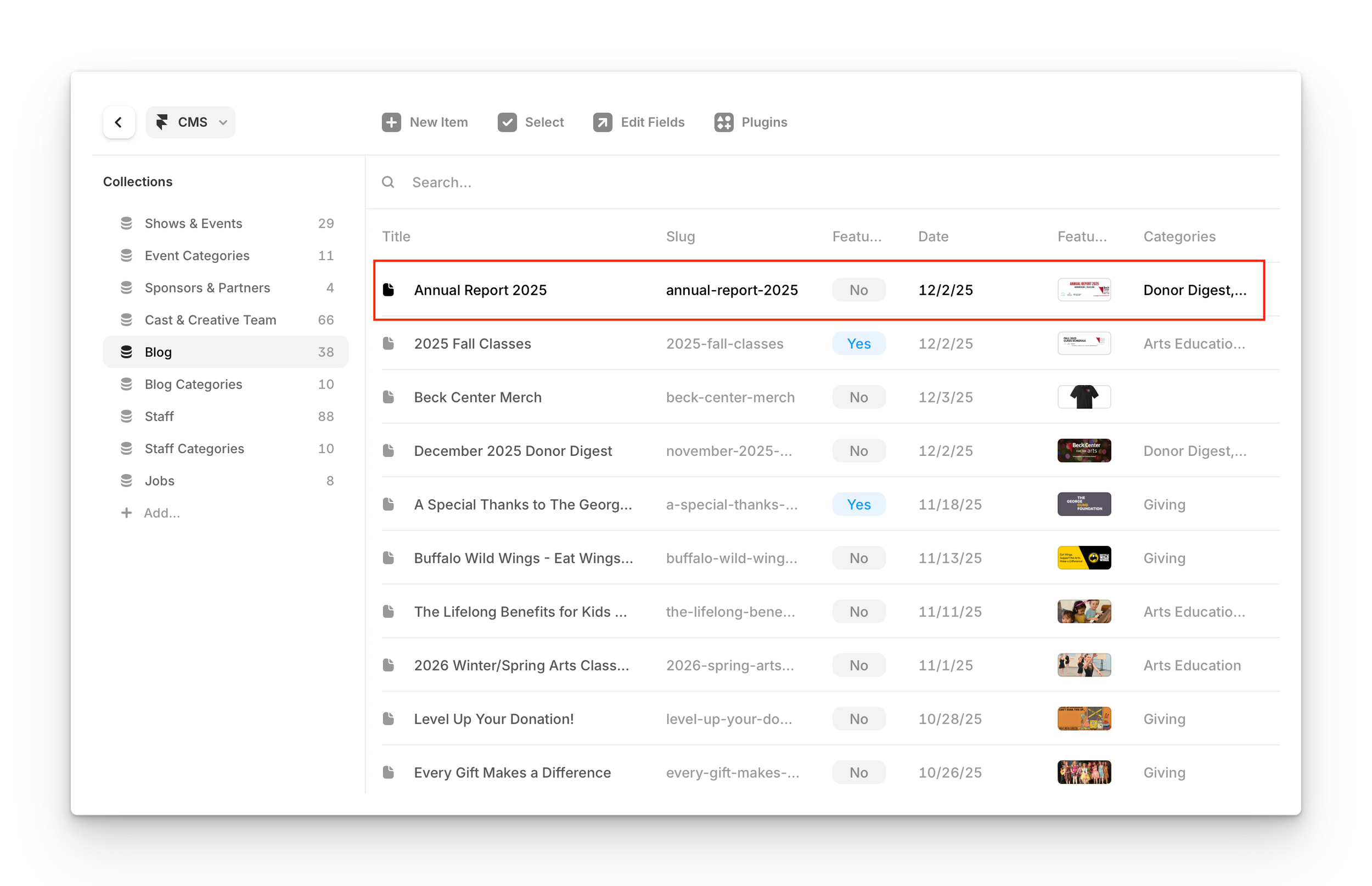
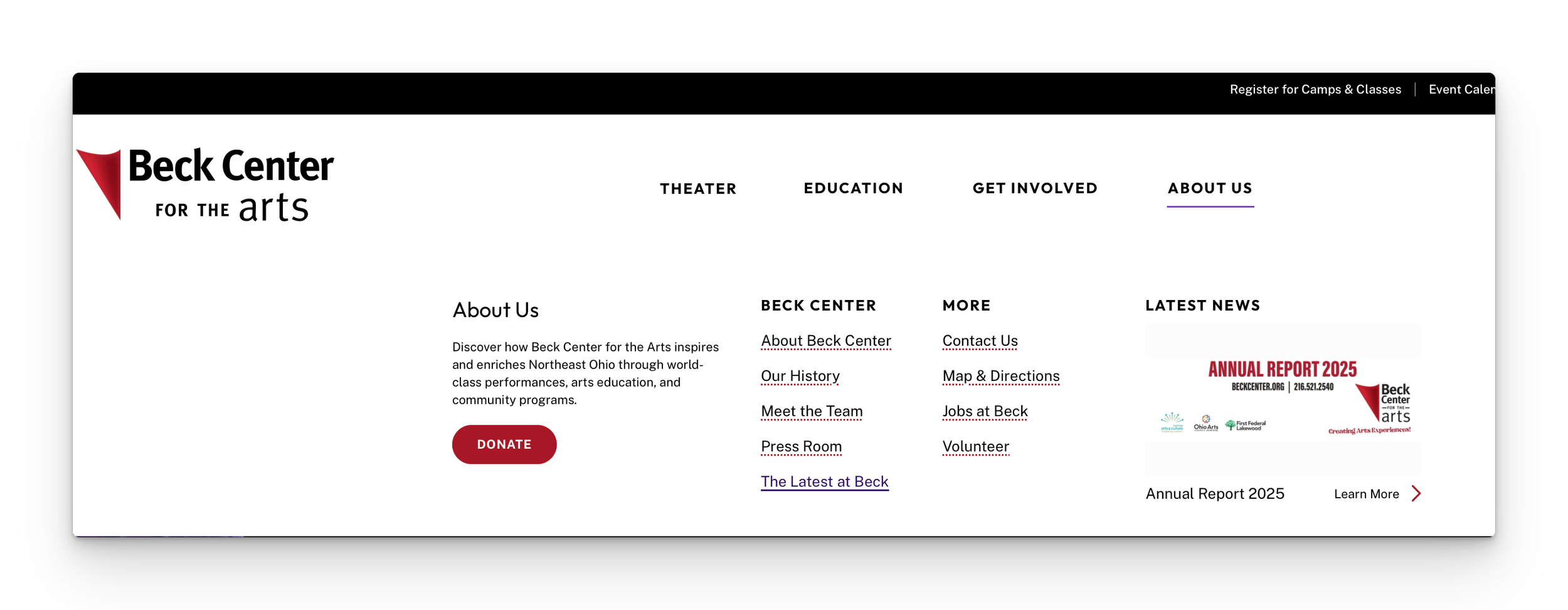
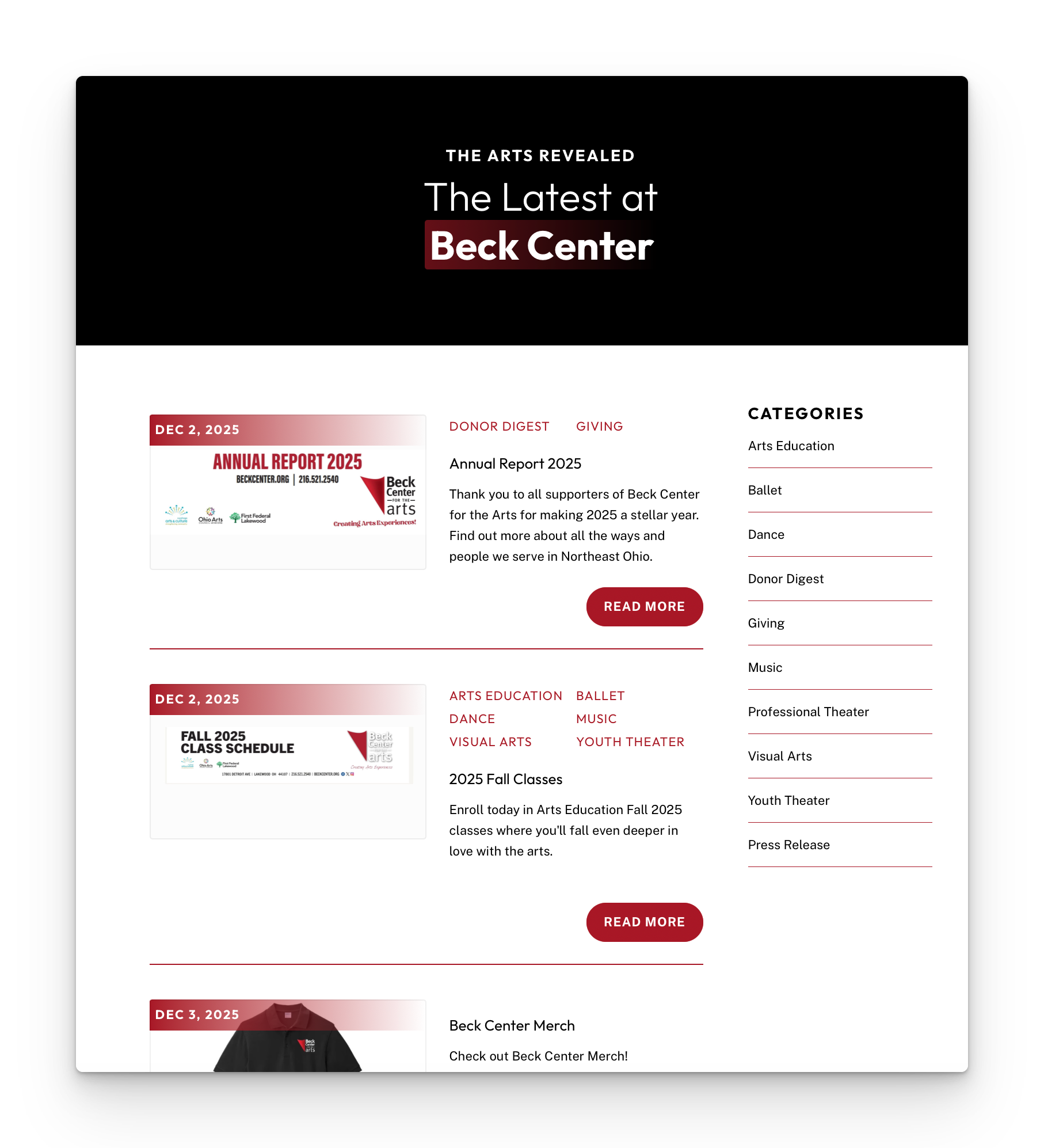
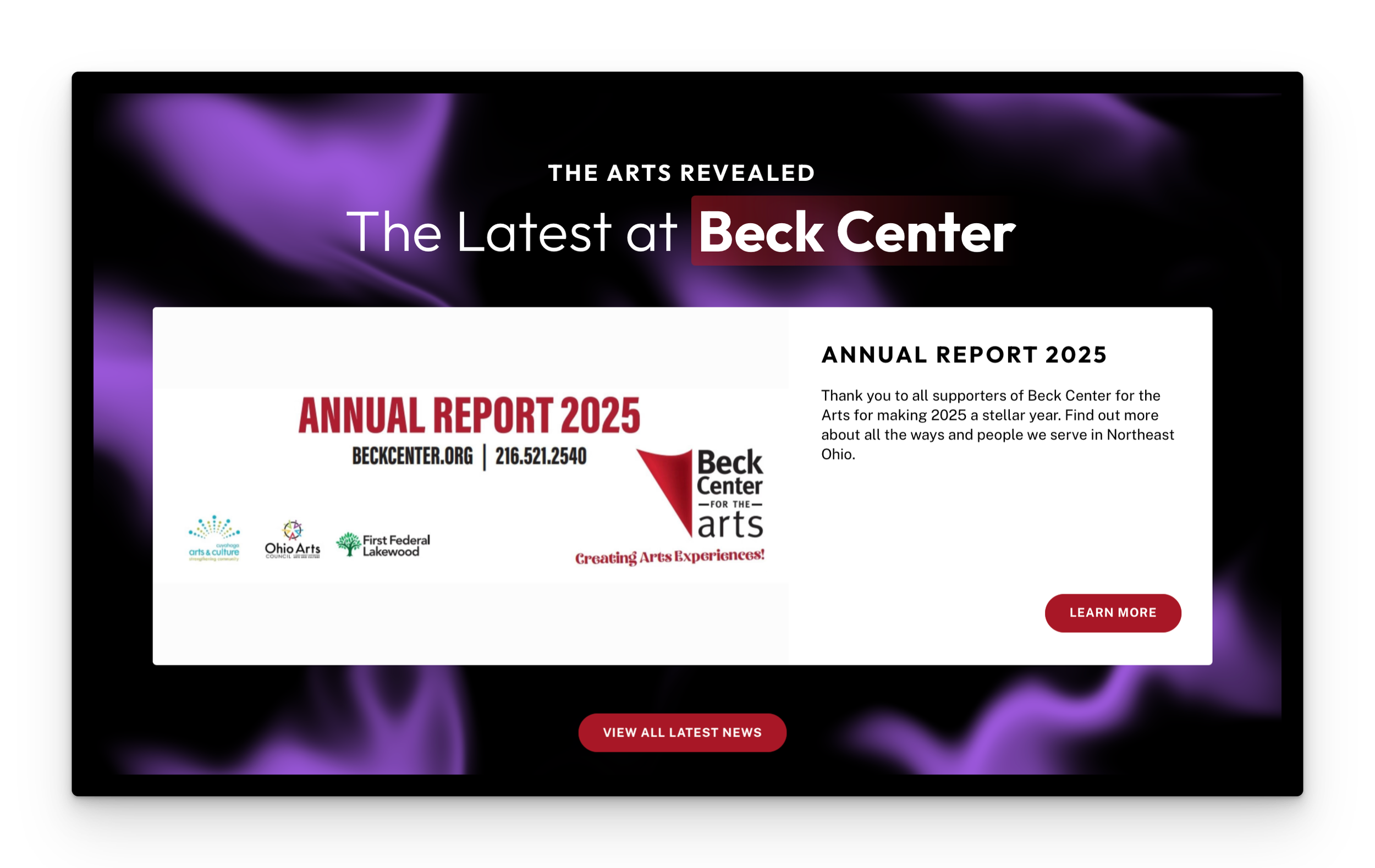
You can click and drag the blog posts into whatever order you'd like. Whichever post you drag to the top of the list will appear in the About dropdown menu as The Latest News and also appear across the entire site in the footer area. We'd recommend moving whatever post you want to have most visible to the top
Featured Toggle
The featured toggle works for two categories. Make sure to turn off the featured toggle on past posts when you go to mark off new featured posts.
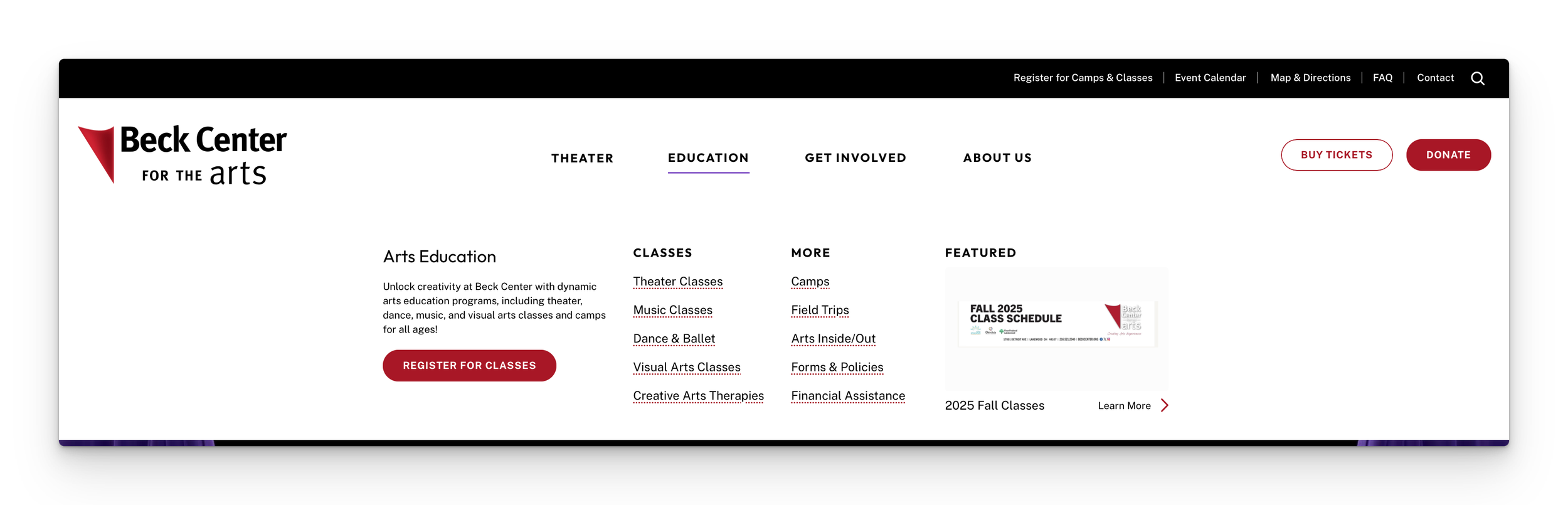
Any post categorized with Arts Education and Featured will appear in the Education dropdown menu.
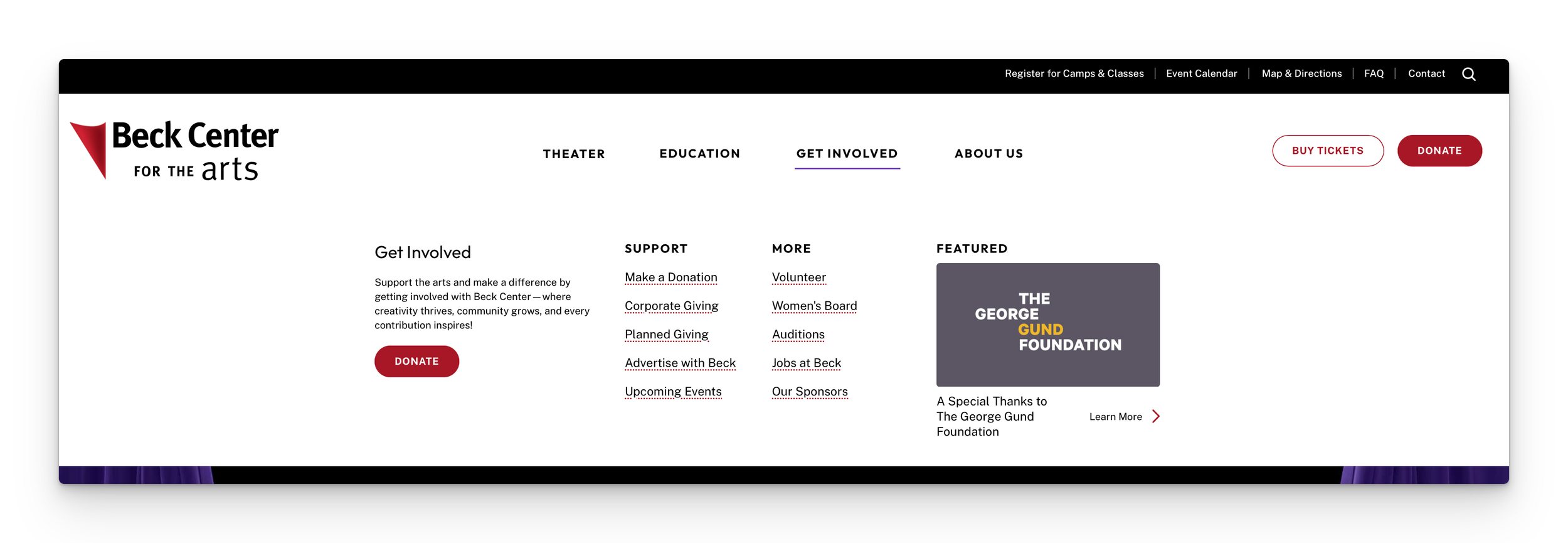
Any post categorized with Giving and Featured will appear in the Get Involved dropdown menu.
Donor Digest
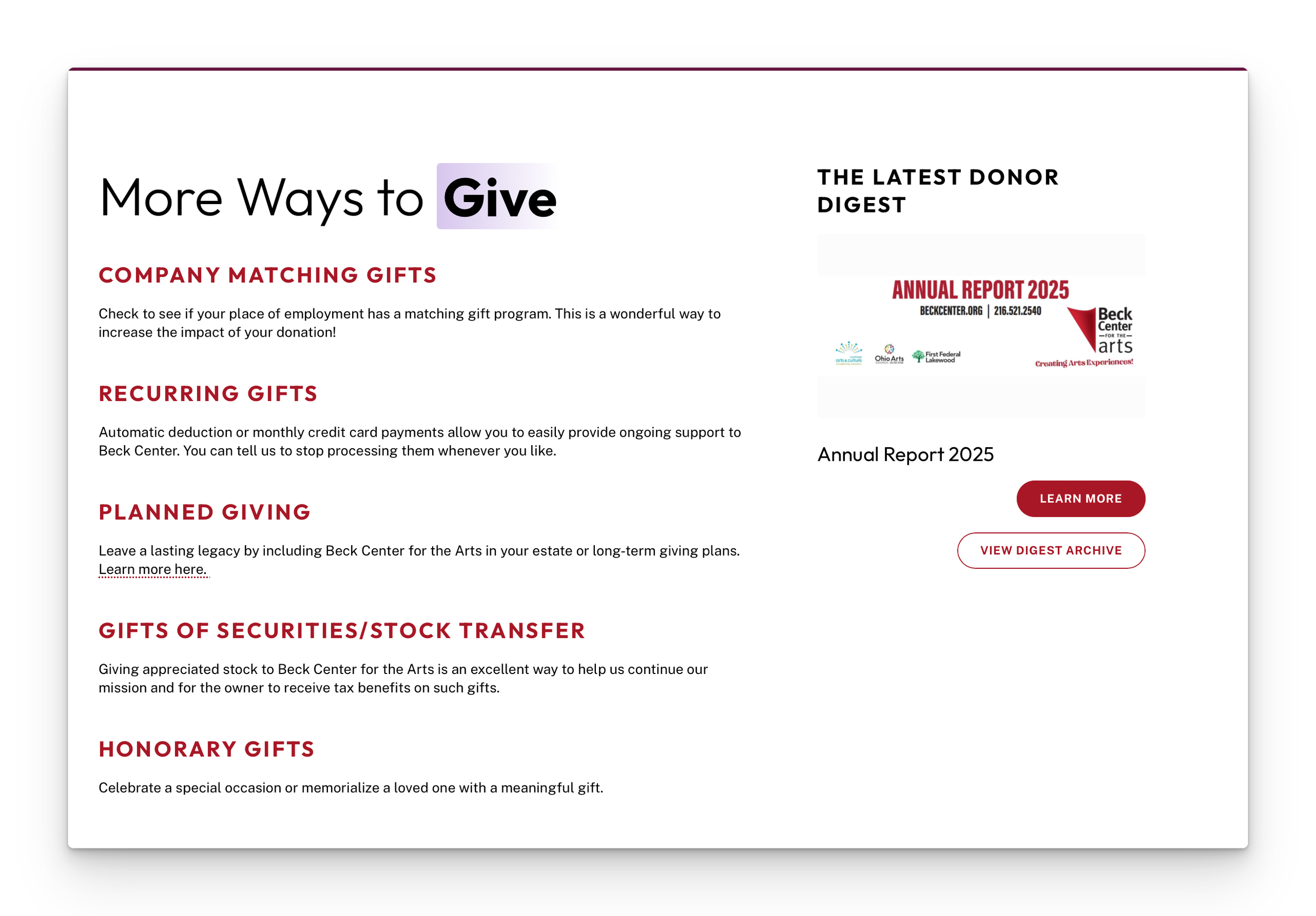
The top most post categorized with Donor Digest will appear on the Individual Giving page: https://beckcenter.org/donate/individual-giving
Recommended Resources & Tools:
CANVA TEMPLATES →
Canva Featured Image and Gallery Image Template - 1920x1080
Canva Template for Headshots - 300x400
Canva Template Link for Past Donor Digest Featured Images - 1920x1080
Canva Template Link for Sponsor Logos - 800x800
ADOBE ACROBAT →
Using Adobe Acrobat to save out pdf files for press releases and Playbills will be useful in order to save out compressed versions of the file so that the file size isn’t too large for uploading to the CMS or downloading for website visitors.
Share links for the pdf files can also be created from Adobe Acrobat which allow for you to hyperlink to a pdf without needing to add a new button in places where one isn’t present in the CMS or on the page.