
Shows & Events CMS
Created by: Synergy Marketing
Created: December 3, 2025
Purpose
This SOP outlines the steps to add a new show or event to the Beck Center website using the CMS in Framer.
SOP’s for Adding & Managing Content



Video Demo
Key Steps for Adding a Show or Event to Framer CMS
1. Accessing the CMS 0:14
Click → [CMS] In the Top Menu
2. Navigating to Shows and Events 0:25
Select 'Shows and Events' from the CMS options in the left panel menu.
3. Creating a New Item 0:47
Click on '➕ New Item'.
Enter the name of the show or event.
Slug will automatically be created </aside>
4. Setting Up the Show Details 0:58
Use toggles to feature the event on the homepage or in the mega menu.
See notes about making a show or event ‘Featured’ below ⬇️
5. Selecting Categories and Dates 1:13
Choose the main category (e.g., Professional Theater).
Select the current season
Manually enter the show dates.
Upload the Featured Image for the show.
7. Entering Ticket Link 2:05
Paste the Salesforce ticket link in the 'Link to' box.
8. Writing the Event Description 2:21
Start with the name of theater in bold.
Provide a brief overview of the show (max 300 characters).
Use formatting options (bold, italics, headings) as needed.
9. Creating a Marketing Excerpt 2:57
Write a concise marketing excerpt to attract attendees (max 160 characters).
10. Adding a Digital Playbill 3:14
Click to add the PDF of the digital playbill
Upload the PDF
11. Preparing Images 3:33
Use the Canva template (1920 by 1080) for all images (except headshots and sponsor logos)
Resize images as necessary and download as PNG.
12. Adding Images and Photo Credits 4:03
Upload images and provide photo credits.
13. Adding Press Releases 4:11
Add the show and then return to add the press release in the blog section.
14. Adding Headshots for Creative Team 4:41
Select headshots from the list of creative team members.
15. Managing Cast Information 5:05
Title the cast section appropriately (e.g., Main Cast).
Select cast members from the list or add new ones.
16. Updating Cast Bios 6:21
Update bios for returning cast members from the cast and creative team CMS.
17. Setting Show Details 6:34
Use toggles for sponsor categories,
Add show duration, content advisories, and audition information to the properties below.
18. Finalizing the Show Entry 7:04
You must click ‘Save Draft’ before being able to publish.
After draft is saved, hit ‘Publish’ then ‘Update’ and preview to make sure everything looks good.
If only making edits, after editing, simply hit 'Publish' to update. </aside>
⚠️ Cautionary Notes
Always double-check the entered dates and links for accuracy.
Ensure that all images meet the specified format and size requirements.
💡 Tips for Efficiency
Use the Canva template for images to save time on resizing.
Keep a checklist handy to ensure all necessary steps are completed before publishing.
Making Shows & Events ‘Featured’
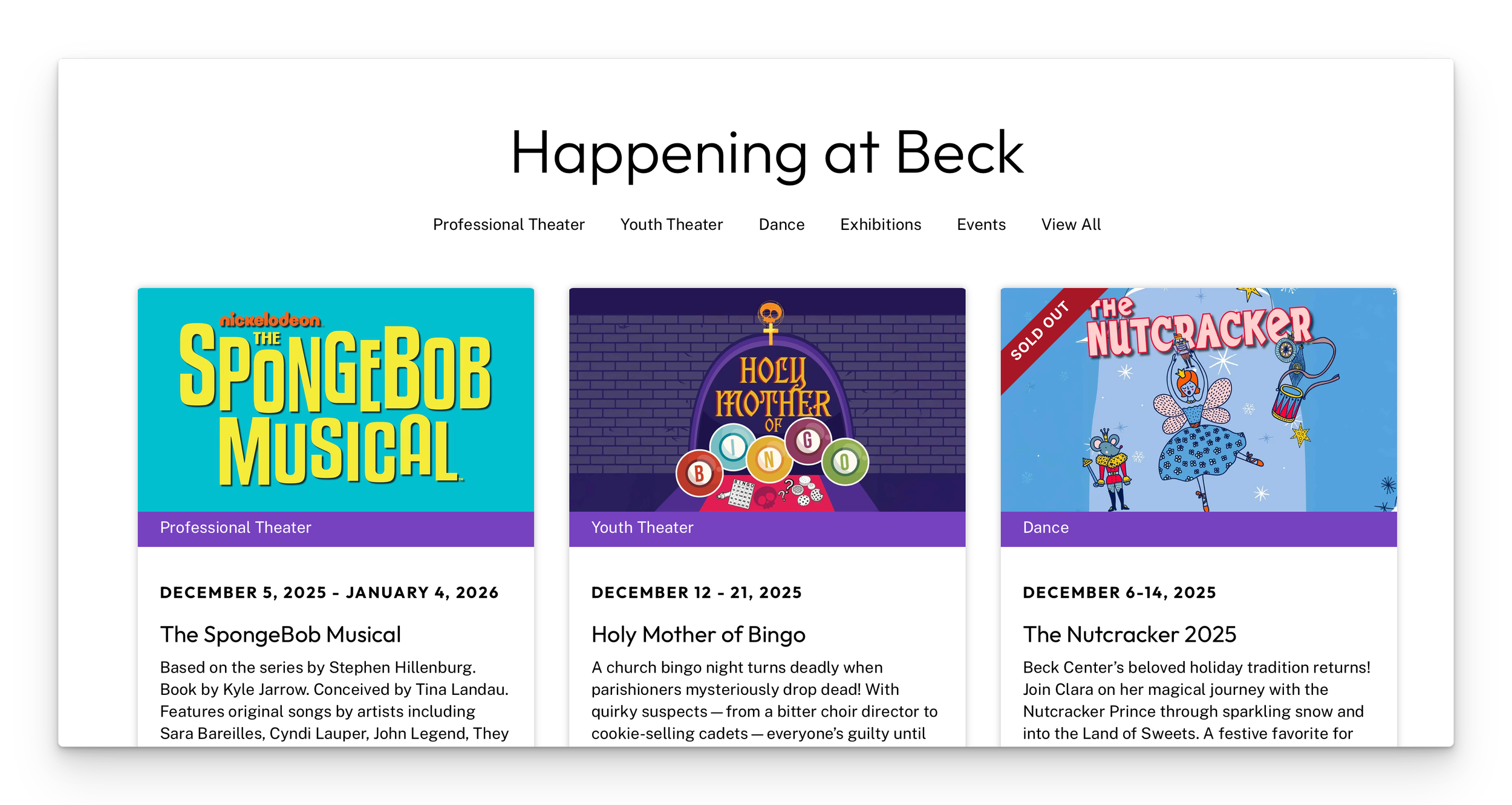
Featured Toggle
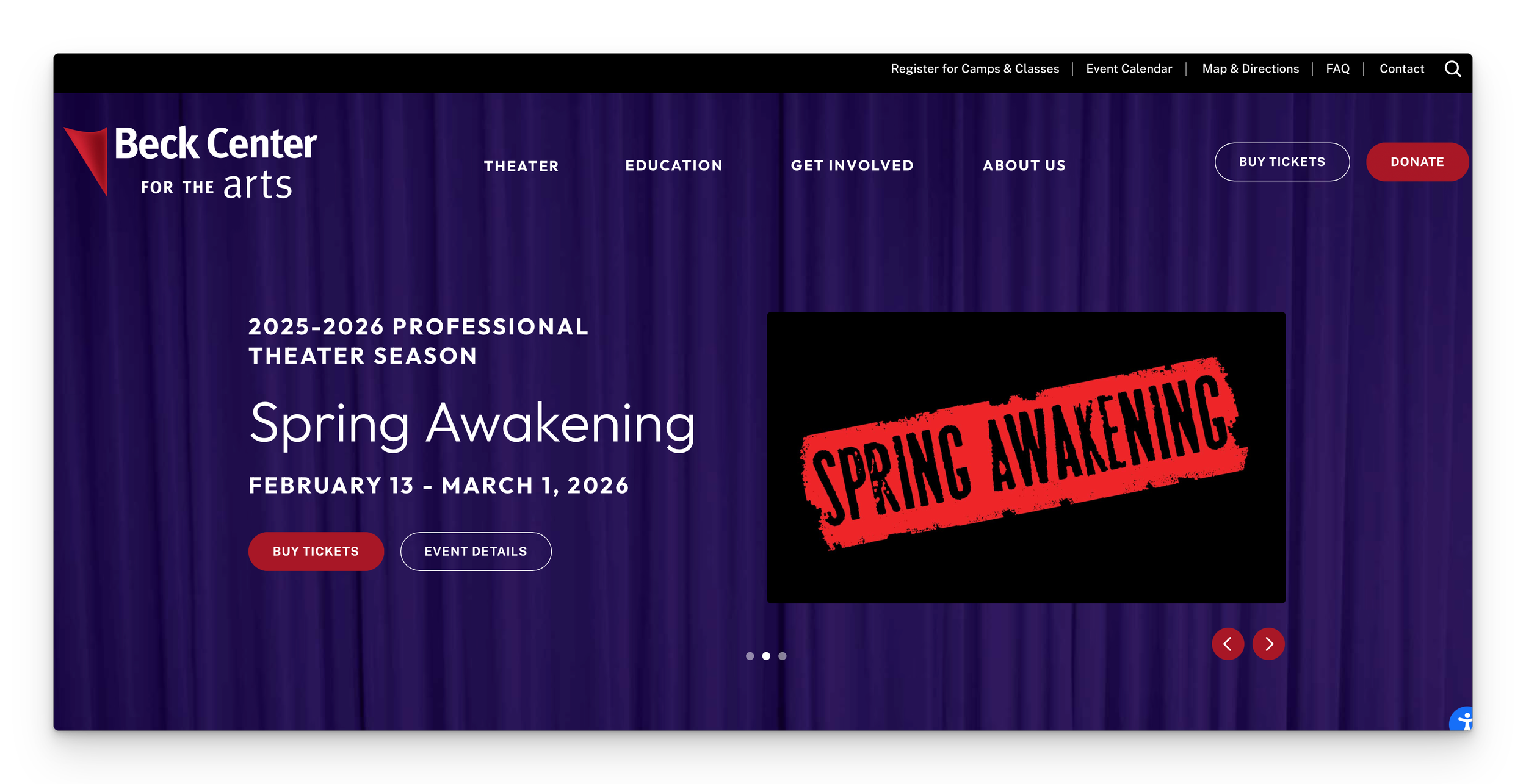
You can feature 3 events in the Happening at Beck section of the homepage. Make sure to turn off featured for past events when turning it on for new events.
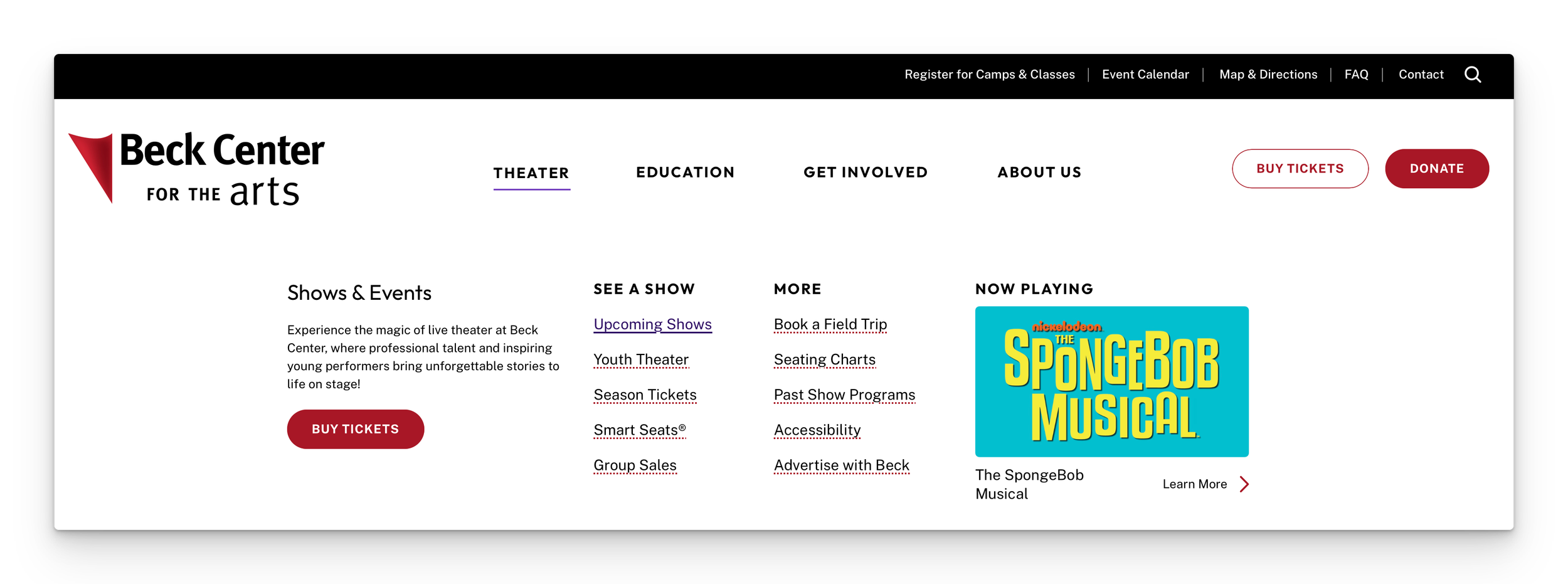
Menu Featured Toggle
Turning this on will add the show or event into the Theater dropdown menu promo area. Make sure to turn off the past event so that only one event is toggled on.
Slideshow Featured The top of the Theater page has a slider with 3 events. Make sure to turn off the slides for anything you no longer want to promote before selecting the new slides. You can also change the slide order but be sure to only have 3 events with Slide 1, Slide 2, and Slide 3 respectively.
Impact Events
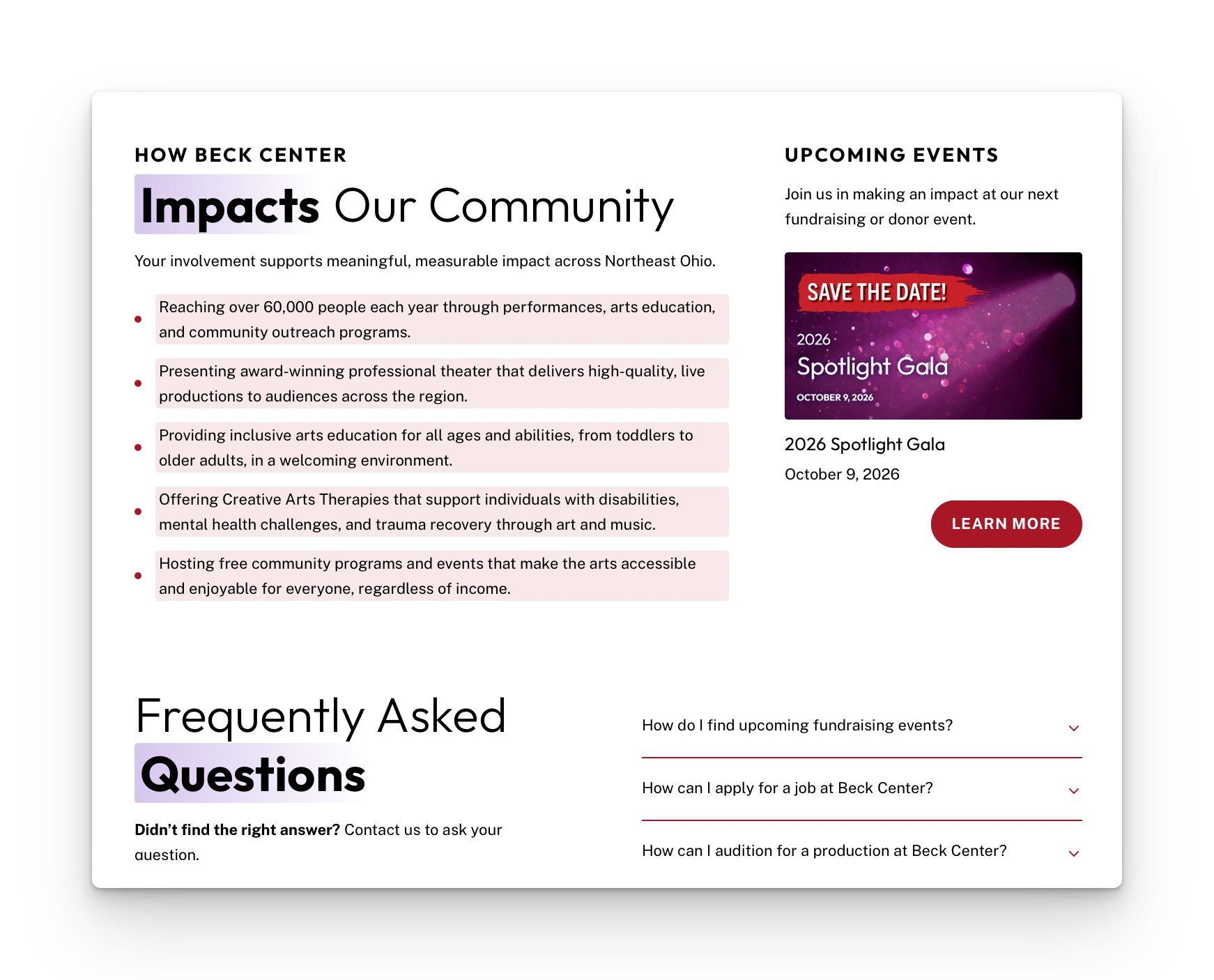
The top most event with the Main Category = ‘Events’ and the Season = ‘Impact Event’ will automatically show up in the Upcoming Events section of the Get Involved page: https://beckcenter.org/get-involved
Recommended Resources & Tools:
CANVA TEMPLATES →
Canva Featured Image and Gallery Image Template - 1920x1080
Canva Template for Headshots - 300x400
Canva Template Link for Past Donor Digest Featured Images - 1920x1080
Canva Template Link for Sponsor Logos - 800x800
ADOBE ACROBAT →
Using Adobe Acrobat to save out pdf files for press releases and Playbills will be useful in order to save out compressed versions of the file so that the file size isn’t too large for uploading to the CMS or downloading for website visitors.
Share links for the pdf files can also be created from Adobe Acrobat which allow for you to hyperlink to a pdf without needing to add a new button in places where one isn’t present in the CMS or on the page.