Links to Basic Intro Videos
Before we dive into building anything, it’s a good idea to get familiar and comfortable with the Framer interface. Watch Framer’s Training Video →
Framer Fundamentals—The Framer Interface
Framer’s CMS keeps your site's content all in one place, making it easy to create, organize, and update. Watch Framer’s Training Video→
Get Started with Framer CMS
If you wish to make significant changes to the site—anything beyond adding shows, events, or blog posts—it's recommended to create a staging site to test your updates before publishing them live. Watch Framer’s Training Video →
Using a Staging Site to Make Changes Before Making Them Live
Links to Framer Support Articles
Definitions
In Framer, the terms for how content is managed are slightly different than what is used in Squarespace & Wordpress
A Page: a single, individual screen of your website—each page has its own layout, content, and URL, and you design it visually. If a visitor clicks a link and the browser changes the address bar, they’re on a different page.
CMS (Content Management System): this is your website’s content engine. Instead of manually creating every single page for blog posts, products, or articles, you create a CMS Collection (which is just a fancy term for a structured list of content). ❗️This should be the focus of content management for the Beck Team.
In short: A page is a single static layout you design by hand. A CMS lets you design once and publish endlessly.
CMS Posts for your website power: the
Shows & Event
Blog
Cast
Staff
Job Openings
Show Sponsors/Partners
and Categories for everything.
Framer Basics
Created by: Synergy Marketing
Created: December 3, 2025
Purpose
This SOP serves as a resource guide to help users locate and access Framer Basics video tutorials provided by Framer.
SOP’s for Adding & Managing Content




📌 Quick Notes & Navigation
-
ALL images EXCEPT headshots and sponsor logos = 1920 x 1080px
Headshots = 300 x 400px
Sponsor Logos = 800 x 800px
-
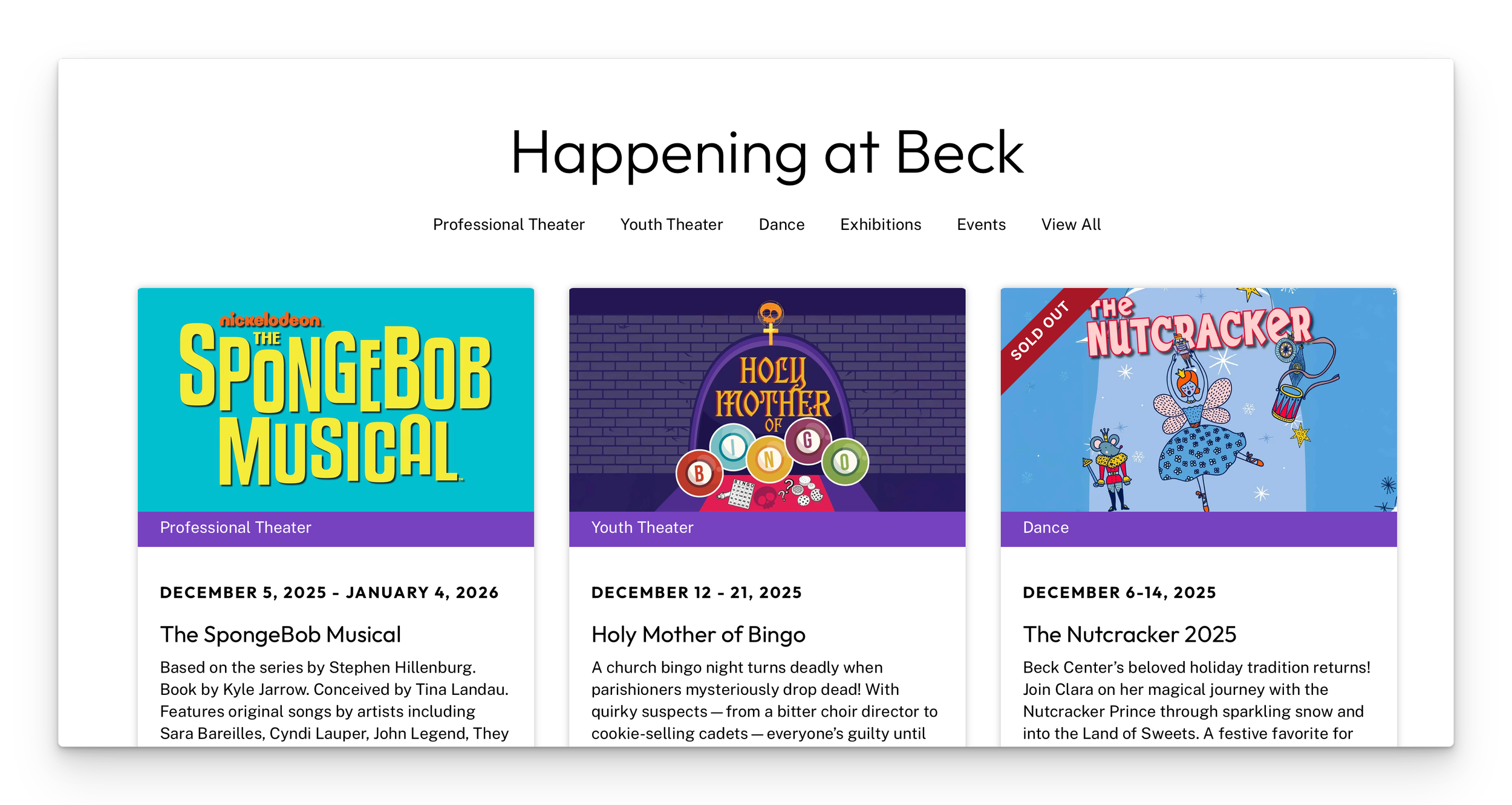
Featured Toggle You can feature 3 events in the Happening at Beck section of the homepage. Make sure to turn off featured for past events when turning it on for new events.
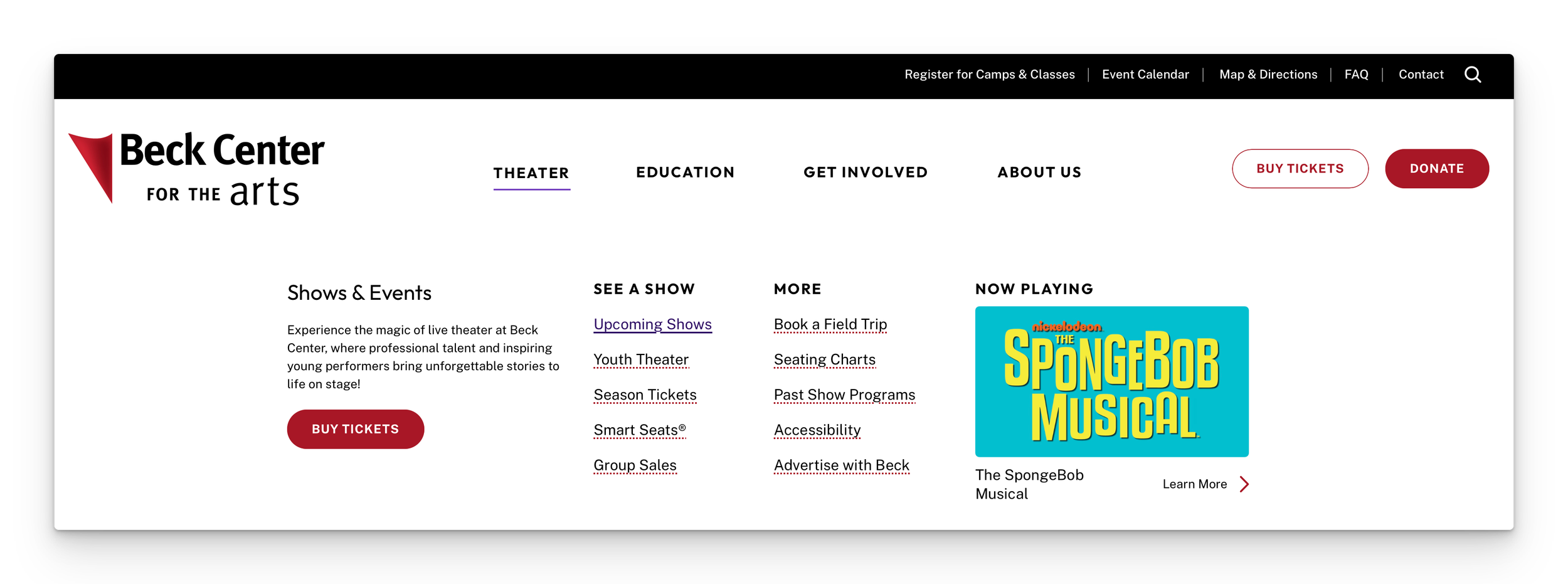
Menu Featured Toggle Turning this on will add the show or event into the Theater dropdown menu promo area. Make sure to turn off the past event so that only one event is toggled on.
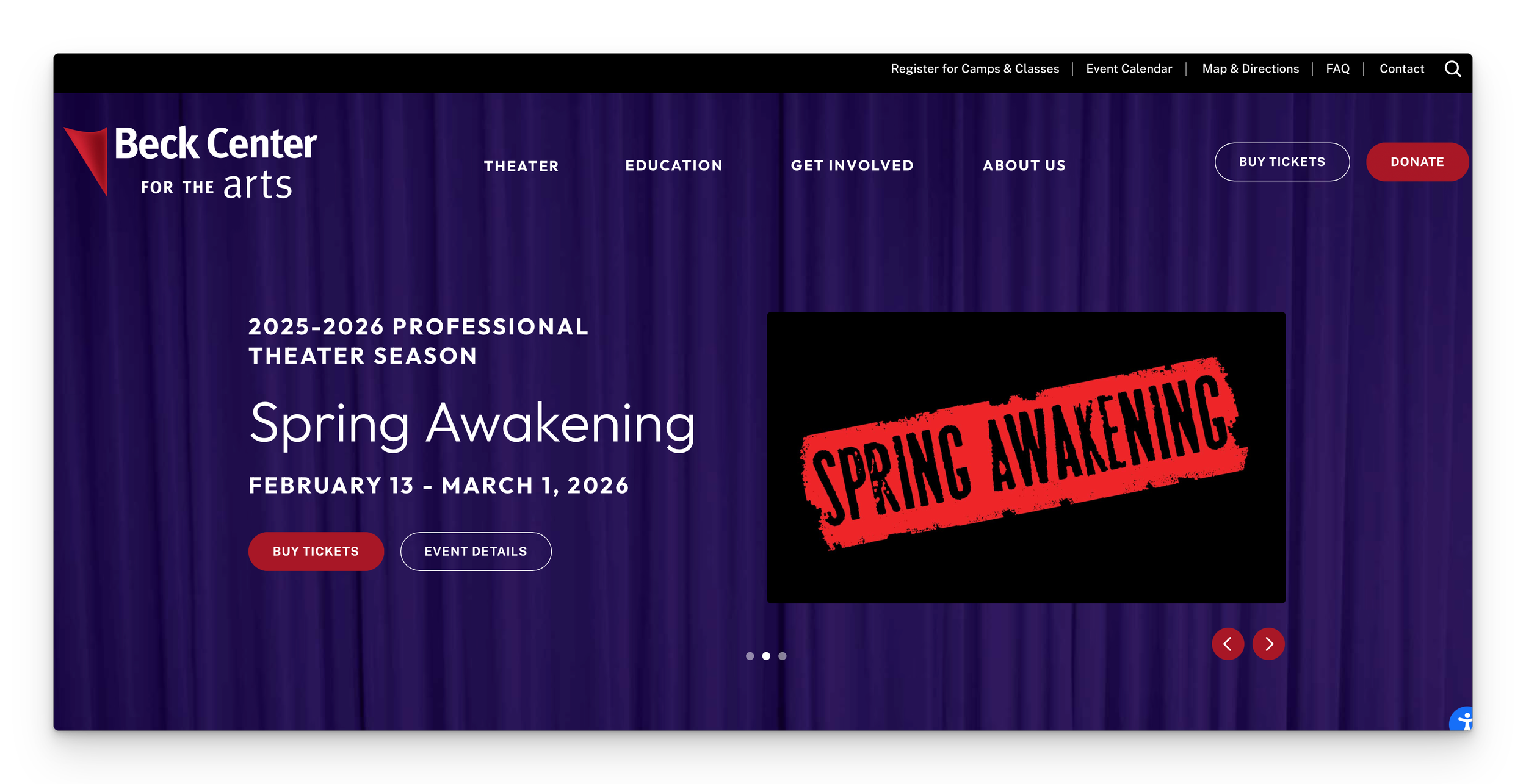
Slideshow Featured The top of the Theater page has a slider with 3 events. Make sure to turn off the slides for anything you no longer want to promote before selecting the new slides. You can also change the slide order but be sure to only have 3 events with Slide 1, Slide 2, and Slide 3 respectively.
Impact Events The top most event with the Main Category = ‘Events’ and the Season = ‘Impact Event’ will automatically show up in the Upcoming Events section of the Get Involved page: https://beckcenter.org/get-involved
-
The Top Post You can click and drag the blog posts into whatever order you'd like. Whichever post you drag to the top of the list will appear in the About dropdown menu as The Latest News and also appear across the entire site in the footer area. We'd recommend moving whatever post you want to have most visible to the top.
Featured Toggle The featured toggle works for two categories. Make sure to turn off the featured toggle on past posts when you go to mark off new featured posts.
Any post categorized with Arts Education and Featured will appear in the Education dropdown menu.
Any post categorized with Giving and Featured will appear in the Get Involved dropdown menu.
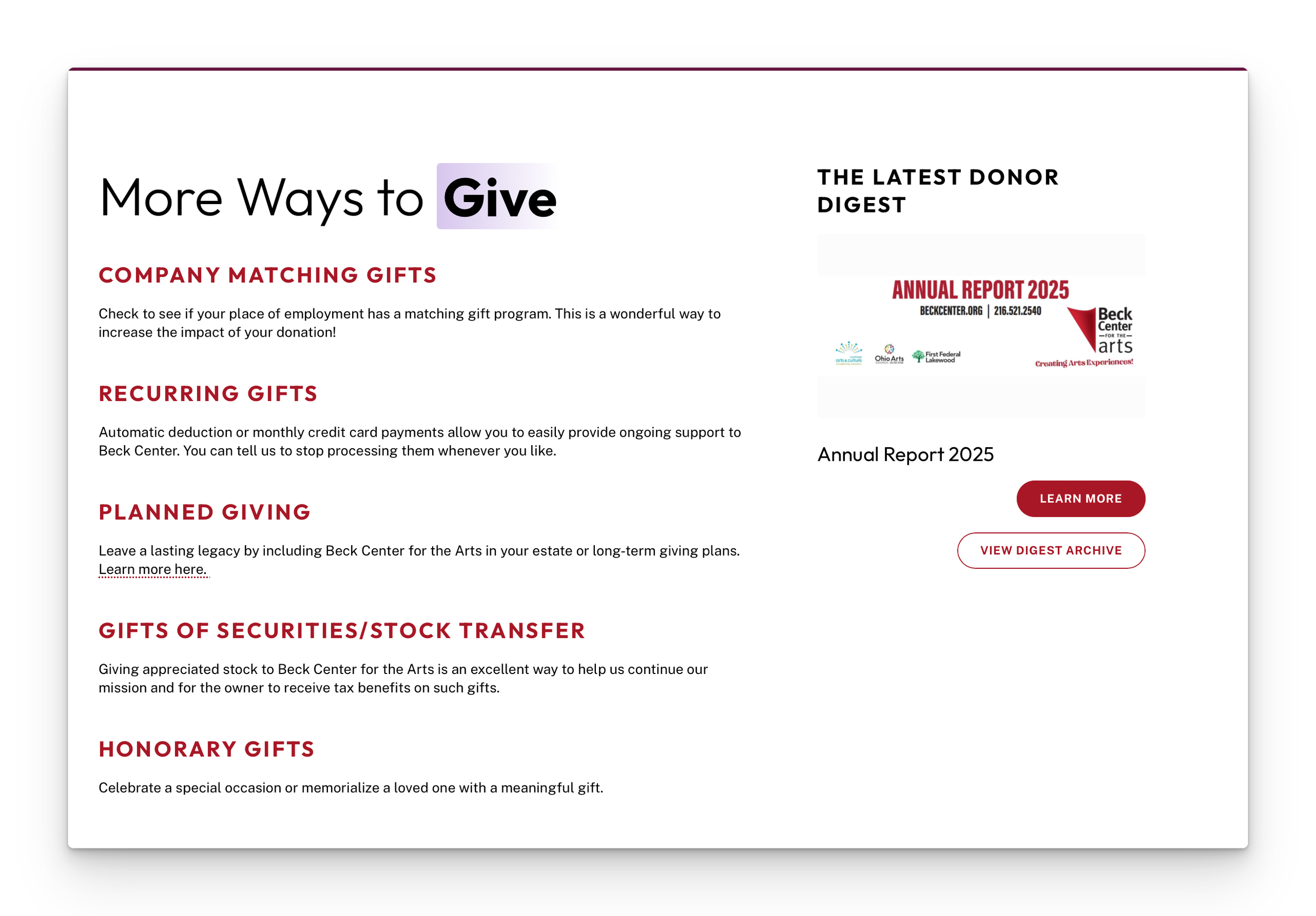
Donor Digest The top most post categorized with Donor Digest will appear on the Individual Giving page: https://beckcenter.org/donate/individual-giving
Recommended Resources & Tools:
CANVA TEMPLATES →
Canva Featured Image and Gallery Image Template - 1920x1080
Canva Template for Headshots - 300x400
Canva Template Link for Past Donor Digest Featured Images - 1920x1080
Canva Template Link for Sponsor Logos - 800x800
ADOBE ACROBAT →
Using Adobe Acrobat to save out pdf files for press releases and Playbills will be useful in order to save out compressed versions of the file so that the file size isn’t too large for uploading to the CMS or downloading for website visitors.
Share links for the pdf files can also be created from Adobe Acrobat which allow for you to hyperlink to a pdf without needing to add a new button in places where one isn’t present in the CMS or on the page.


Making Shows & Events ‘Featured’
Featured Toggle
You can feature 3 events in the Happening at Beck section of the homepage. Make sure to turn off featured for past events when turning it on for new events.
Menu Featured Toggle
Turning this on will add the show or event into the Theater dropdown menu promo area. Make sure to turn off the past event so that only one event is toggled on.
Slideshow Featured The top of the Theater page has a slider with 3 events. Make sure to turn off the slides for anything you no longer want to promote before selecting the new slides. You can also change the slide order but be sure to only have 3 events with Slide 1, Slide 2, and Slide 3 respectively.
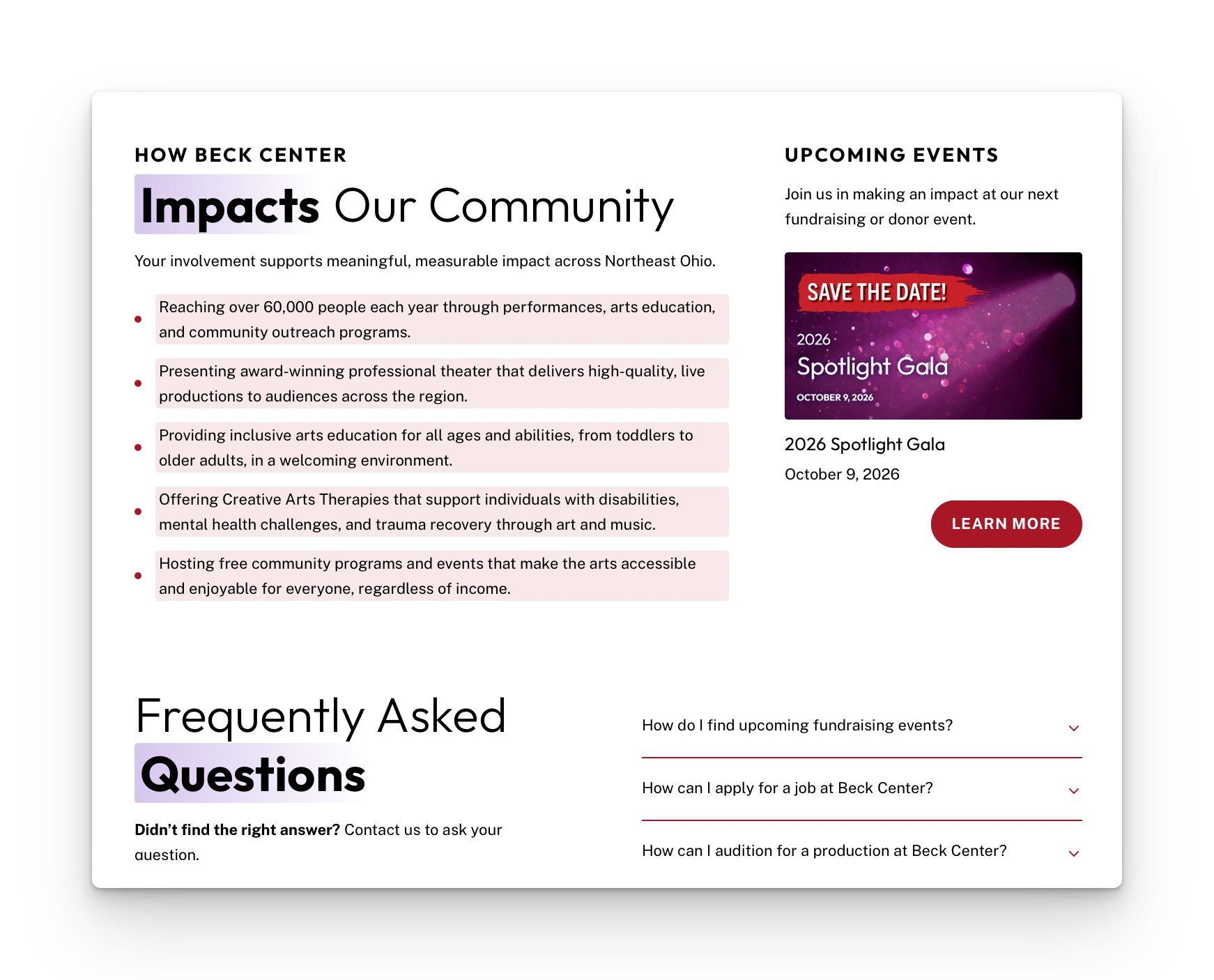
Impact Events
The top most event with the Main Category = ‘Events’ and the Season = ‘Impact Event’ will automatically show up in the Upcoming Events section of the Get Involved page: https://beckcenter.org/get-involved
Making Blog Posts ‘Featured’
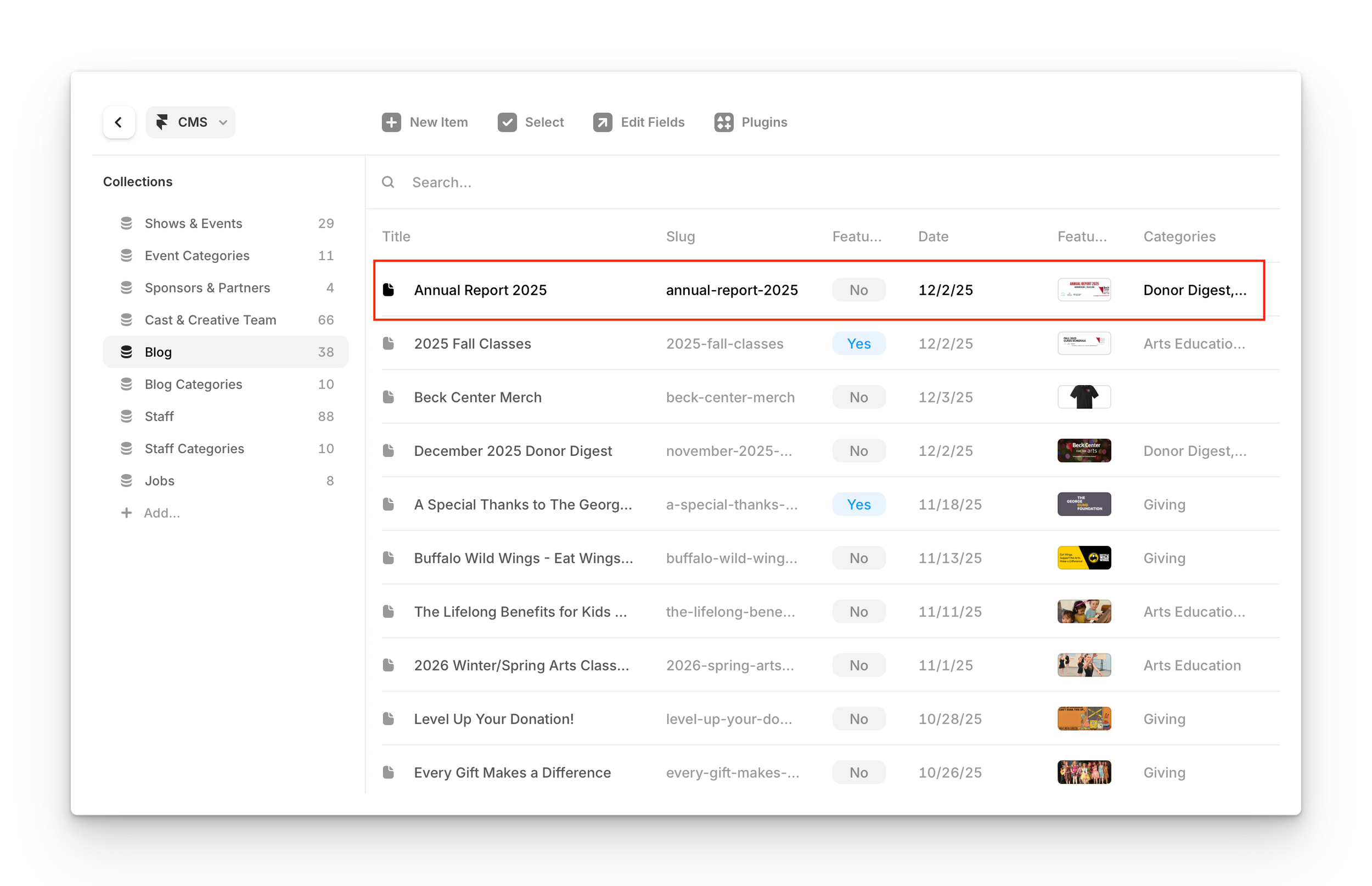
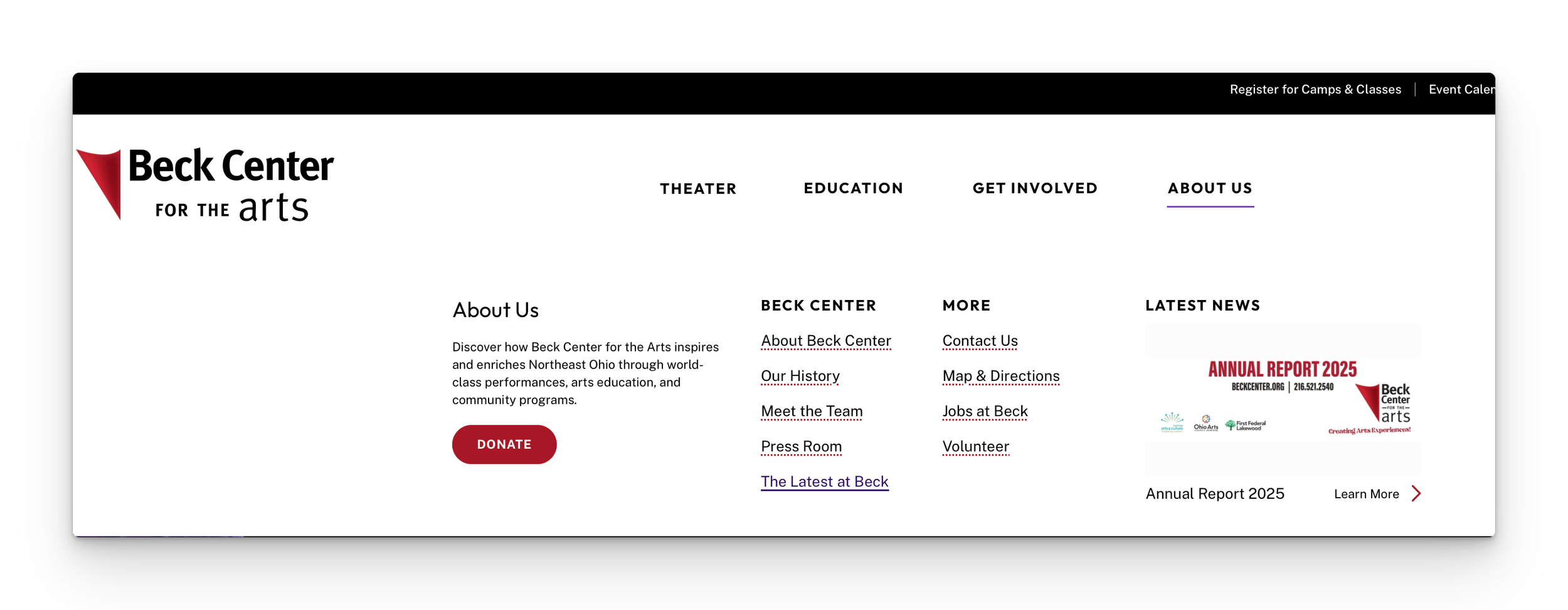
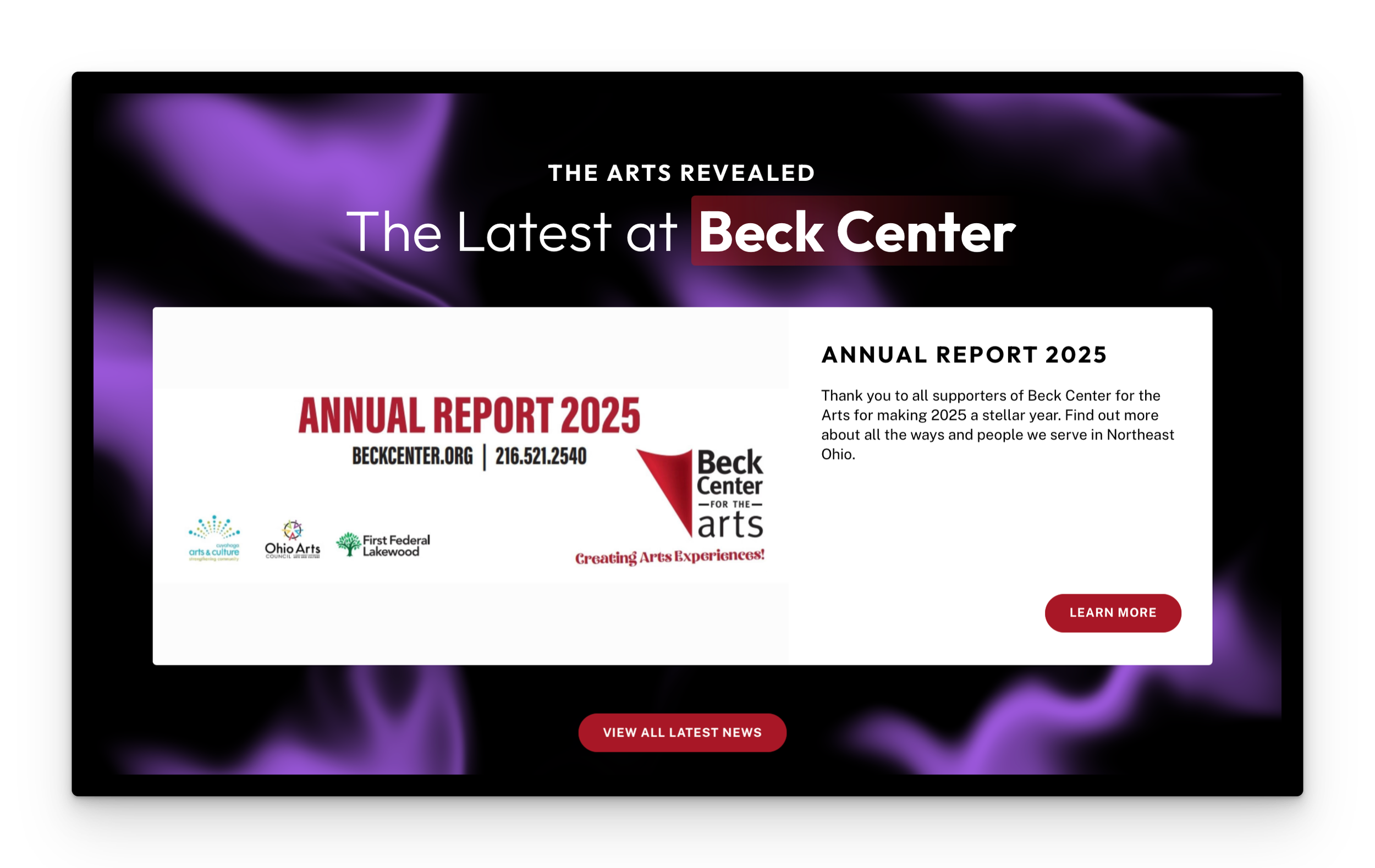
The Top Post
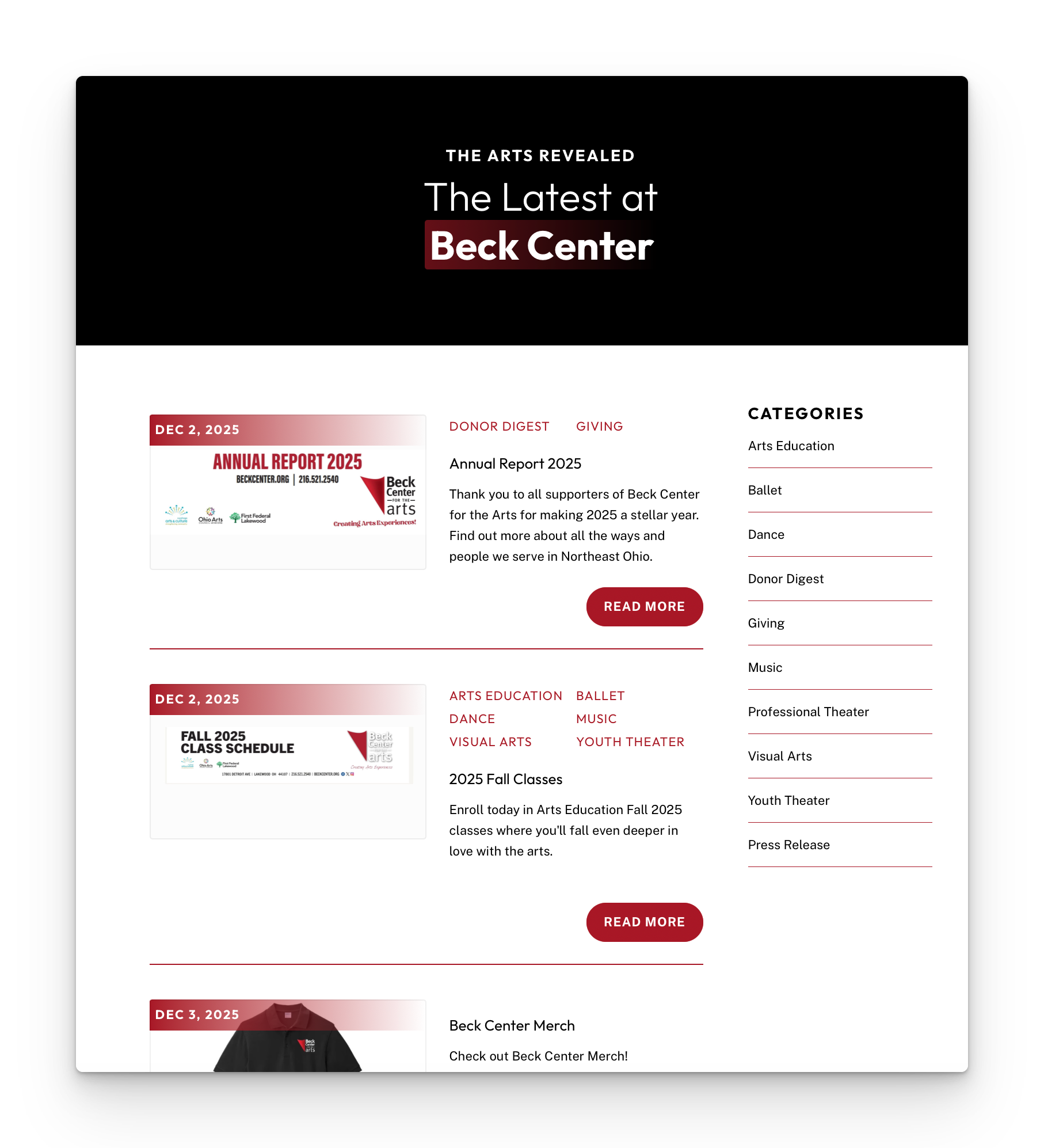
You can click and drag the blog posts into whatever order you'd like. Whichever post you drag to the top of the list will appear in the About dropdown menu as The Latest News and also appear across the entire site in the footer area. We'd recommend moving whatever post you want to have most visible to the top
Featured Toggle
The featured toggle works for two categories. Make sure to turn off the featured toggle on past posts when you go to mark off new featured posts.
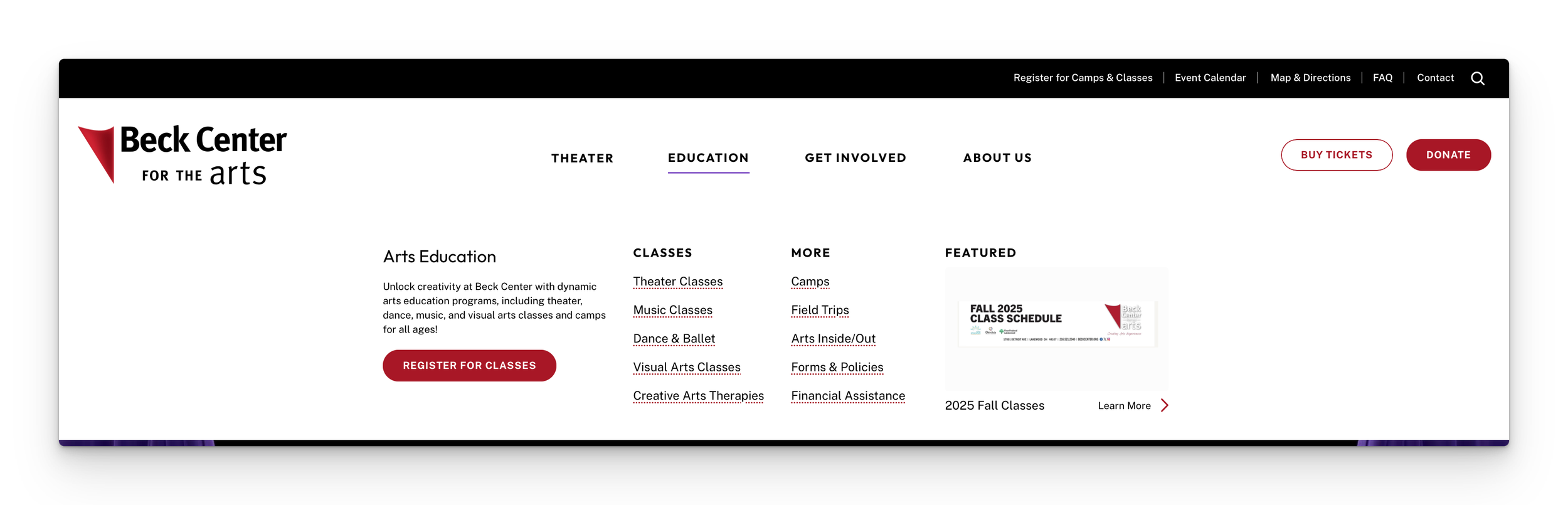
Any post categorized with Arts Education and Featured will appear in the Education dropdown menu.
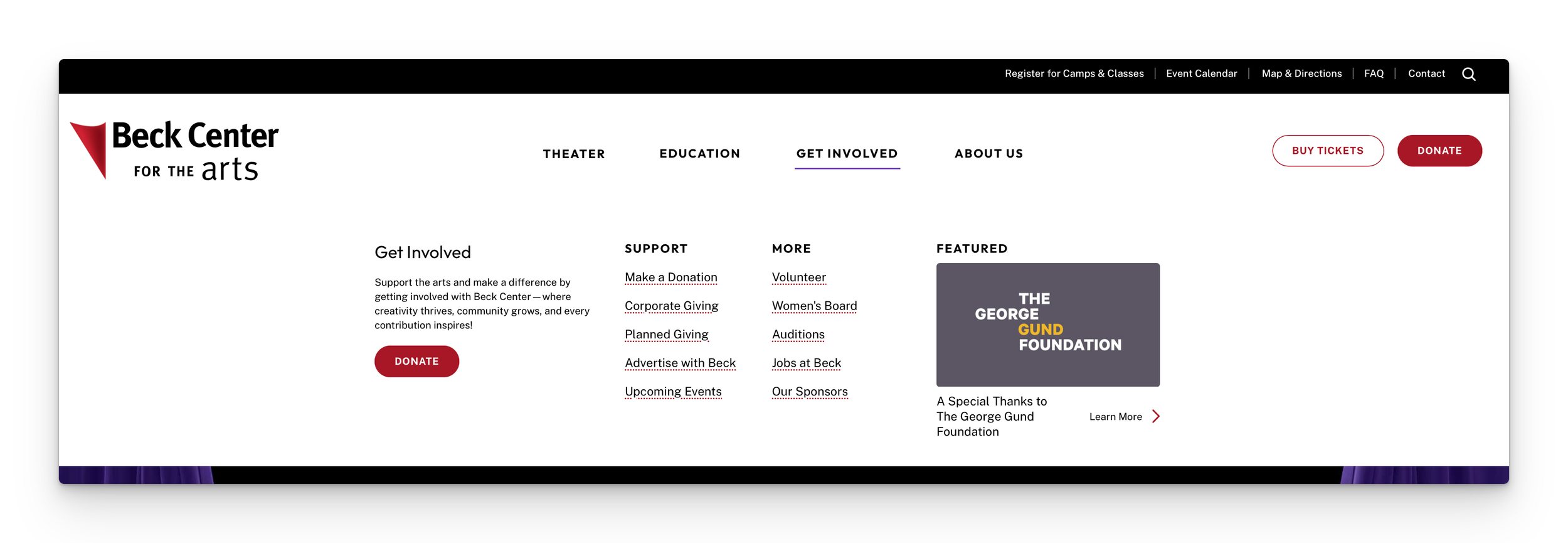
Any post categorized with Giving and Featured will appear in the Get Involved dropdown menu.
Donor Digest
The top most post categorized with Donor Digest will appear on the Individual Giving page: https://beckcenter.org/donate/individual-giving